
The Ultimate Alt Code & Unicode Keystroke Cheat Sheet (Windows, Mac, iOS & Android)
By The Cool Symbol Team on 2026-10-13
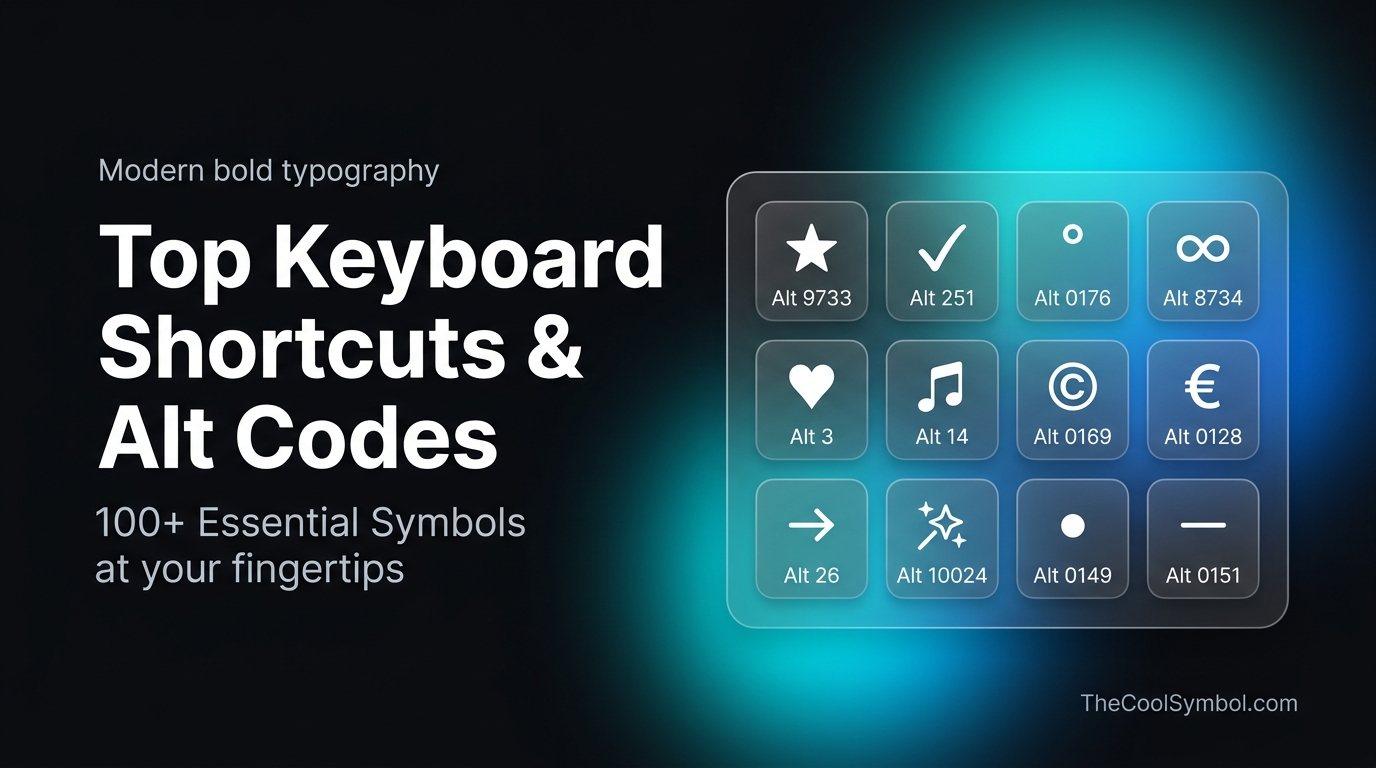
Typing special symbols shouldn’t require searching through endless menus or copy-pasting from shady pop-up websites. Whether you are formatting an executive dashboard, creating aesthetic social media captions, styling game clan tags, or writing technical documentation, keyboard keystrokes are the fastest way to input special characters.
However, most Alt code lists on the web suffer from a major limitation: they only provide Windows NumPad decimal codes, leaving laptop, Mac, and smartphone users stranded.
This guide provides a verified, cross-platform reference for the 100 most popular symbols across seven categories. Every entry lists the Windows Alt Code, the Mac Option Shortcut, the Unicode Hex Point, the HTML Entity, and the Mobile Input Method.
📄 Free Printable PDF & Classroom Handout:
Need a quick offline desktop reference? Download our clean Alt Code & Unicode Cheat Sheet PDF or view the Printable Web Version.
Quick Guide: How Keystrokes Work on Different Devices
Before jumping to the reference tables, here is the secret to making symbol shortcuts work on your specific hardware:
1. Windows Keyboards (Standard with NumPad)
- Hold down the Alt key (either left or right).
- Type the numerical sequence on the separate numeric keypad (NumPad) on the right side of your keyboard. (The top-row number keys will not trigger Alt codes).
- Release the Alt key. The symbol appears instantly.
2. Windows Laptops Without a Dedicated NumPad
- Method A (Fn Key): Press Fn + NumLock to turn the right-hand letter keys (M, J, K, L, U, I, O, 7, 8, 9) into a virtual numeric keypad. Hold Alt and type the numbers on those letter keys.
- Method B (Windows Symbol Picker): Press Windows Key + . (Period) or Windows Key + ; (Semicolon) to open Windows 10/11’s built-in symbol and emoji palette.
- Method C (Hex Unicode): Type the 4-digit hex code (e.g.
2605), then press Alt + X in Microsoft Word, WordPad, or LibreOffice.
3. Apple Mac (macOS)
- Mac keyboards use the Option key (also labeled ⌥) or Option + Shift combinations.
- For the full palette, press Control + Command + Space to summon the macOS Character Viewer.
4. iPhone & Android
- Tap the
?123key, then tap=\<for additional symbols. - Long-Press Secret: Press and hold related keys (e.g., hold
0for degree°, hold-for em-dash—, hold$for currency symbols€, £, ¥).
1. Arrows & Directional Pointers
| Symbol | Character Name | Windows Alt Code | Mac Shortcut | Unicode Hex | HTML Entity | Mobile Shortcut |
|---|---|---|---|---|---|---|
| ↑ | Up Arrow | Alt + 24 | Option + ↑ | U+2191 | ↑ | Long-press ^ |
| ↓ | Down Arrow | Alt + 25 | Option + ↓ | U+2193 | ↓ | Long-press v |
| → | Right Arrow | Alt + 26 | Option + → | U+2192 | → | Tap -> |
| ← | Left Arrow | Alt + 27 | Option + ← | U+2190 | ← | Tap <- |
| ↔ | Left Right Arrow | Alt + 29 | — | U+2194 | ↔ | Symbol keyboard |
| ↕ | Up Down Arrow | Alt + 18 | — | U+2195 | ↕ | Symbol keyboard |
| ▲ | Black Up Triangle | Alt + 30 | — | U+25B2 | ▲ | Symbol keyboard |
| ▼ | Black Down Triangle | Alt + 31 | — | U+25BC | ▼ | Symbol keyboard |
| ► | Black Right Pointer | Alt + 16 | — | U+25BA | ► | Symbol keyboard |
| ◄ | Black Left Pointer | Alt + 17 | — | U+25C4 | ◄ | Symbol keyboard |
| ➔ | Heavy Right Arrow | Alt + 10132 | — | U+2794 | ➔ | Emoji keyboard |
| ➜ | Heavy Round Arrow | Alt + 10140 | — | U+279C | ➜ | Emoji keyboard |
| ⇒ | Right Double Arrow | Alt + 8658 | — | U+21D2 | ⇒ | Symbol keyboard |
| ⇐ | Left Double Arrow | Alt + 8656 | — | U+21D0 | ⇐ | Symbol keyboard |
| ↵ | Downwards Arrow with Corner | Alt + 8629 | Return | U+21B5 | ↵ | Enter key |
2. Stars, Sparkles & Badges
| Symbol | Character Name | Windows Alt Code | Mac Shortcut | Unicode Hex | HTML Entity | Mobile Shortcut |
|---|---|---|---|---|---|---|
| ★ | Black Star (Solid) | Alt + 9733 | Character Viewer | U+2605 | ★ | Emoji palette |
| ☆ | White Star (Outline) | Alt + 9734 | Character Viewer | U+2606 | ☆ | Emoji palette |
| ✦ | Black Four Pointed Star | Alt + 10022 | — | U+2726 | ✦ | Symbol palette |
| ✧ | White Four Pointed Star | Alt + 10023 | — | U+2727 | ✧ | Symbol palette |
| ✪ | Circled White Star | Alt + 10026 | — | U+272A | ✪ | Emoji keyboard |
| ✯ | Pinwheel Star | Alt + 10031 | — | U+272F | ✯ | Emoji keyboard |
| ✵ | Eight Pointed Rectilinear Star | Alt + 10037 | — | U+2735 | ✵ | Emoji keyboard |
| ✶ | Six Pointed Black Star | Alt + 10038 | — | U+2736 | ✶ | Emoji keyboard |
| ✷ | Eight Pointed Black Star | Alt + 10039 | — | U+2737 | ✷ | Emoji keyboard |
| ✸ | Heavy Eight Pointed Star | Alt + 10040 | — | U+2738 | ✸ | Emoji keyboard |
| ✹ | Twelve Pointed Black Star | Alt + 10041 | — | U+2739 | ✹ | Emoji keyboard |
| ✨ | Sparkles Emoji | Alt + 10024 | Ctrl + Cmd + Space | U+2728 | ✨ | Emoji ✨ |
| ⭐ | White Medium Star | Alt + 11088 | Ctrl + Cmd + Space | U+2B50 | ⭐ | Emoji ⭐ |
| 🌟 | Glowing Star | — | Ctrl + Cmd + Space | U+1F31F | 🌟 | Emoji 🌟 |
| 💫 | Dizzy Star | — | Ctrl + Cmd + Space | U+1F4AB | 💫 | Emoji 💫 |
3. Check Marks, Bullets & Markers
| Symbol | Character Name | Windows Alt Code | Mac Shortcut | Unicode Hex | HTML Entity | Mobile Shortcut |
|---|---|---|---|---|---|---|
| ✓ | Check Mark | Alt + 251 or Alt + 10003 | Option + V | U+2713 | ✓ | Emoji palette |
| ✔ | Heavy Check Mark | Alt + 10004 | Character Viewer | U+2714 | ✔ | Emoji ✔ |
| ✗ | Ballot X (Cross) | Alt + 10007 | Character Viewer | U+2717 | ✗ | Emoji palette |
| ✘ | Heavy Ballot X | Alt + 10008 | Character Viewer | U+2718 | ✘ | Emoji palette |
| • | Bullet Point | Alt + 0149 or Alt + 7 | Option + 8 | U+2022 | • | Long-press - |
| ‣ | Triangular Bullet | Alt + 8227 | — | U+2043 | ‣ | Symbol keyboard |
| ⁃ | Hyphen Bullet | Alt + 8208 | Option + - | U+2043 | ‐ | Standard hyphen |
| ■ | Black Square | Alt + 254 | — | U+25A0 | ■ | Symbol keyboard |
| □ | White Square | Alt + 9633 | — | U+25A1 | □ | Symbol keyboard |
| ▪ | Black Small Square | Alt + 9642 | — | U+25AA | ▪ | Symbol keyboard |
| ▫ | White Small Square | Alt + 9643 | — | U+25AB | ▫ | Symbol keyboard |
| ◆ | Black Diamond | Alt + 4 | — | U+25C6 | ◆ | Symbol keyboard |
| ◇ | White Diamond | Alt + 9671 | — | U+25C7 | ◇ | Symbol keyboard |
| ○ | White Circle | Alt + 9675 | — | U+25CB | ○ | Symbol keyboard |
| ● | Black Circle | Alt + 9679 | — | U+25CF | ● | Symbol keyboard |
4. Math, Fractions & Measurements
| Symbol | Character Name | Windows Alt Code | Mac Shortcut | Unicode Hex | HTML Entity | Mobile Shortcut |
|---|---|---|---|---|---|---|
| ° | Degree Symbol | Alt + 0176 | Option + Shift + 8 | U+00B0 | ° | Long-press 0 |
| ± | Plus-Minus Sign | Alt + 0177 | Option + Shift + = | U+00B1 | ± | Long-press + |
| ½ | Fraction One Half | Alt + 0189 | — | U+00BD | ½ | Long-press 1 |
| ¼ | Fraction One Quarter | Alt + 0188 | — | U+00BC | ¼ | Long-press 1 |
| ¾ | Fraction Three Quarters | Alt + 0190 | — | U+00BE | ¾ | Long-press 3 |
| ≠ | Not Equal To | Alt + 8800 | Option + = | U+2260 | ≠ | Long-press = |
| ≈ | Almost Equal To | Alt + 8776 | Option + X | U+2248 | ≈ | Long-press = |
| ≤ | Less Than or Equal | Alt + 8804 | Option + < | U+2264 | ≤ | Long-press < |
| ≥ | Greater Than or Equal | Alt + 8805 | Option + > | U+2265 | ≥ | Long-press > |
| ∞ | Infinity Sign | Alt + 8734 | Option + 5 | U+221E | ∞ | Symbol keyboard |
| √ | Square Root | Alt + 251 | Option + V | U+221A | √ | Symbol keyboard |
| × | Multiplication Sign | Alt + 0215 | — | U+00D7 | × | Long-press * |
| ÷ | Division Sign | Alt + 0247 | Option + / | U+00F7 | ÷ | Long-press / |
| µ | Micro Sign / Mu | Alt + 0181 | Option + M | U+00B5 | µ | Greek keyboard |
| π | Pi Symbol | Alt + 227 | Option + P | U+03C0 | π | Greek keyboard |
5. Currency, Legal & Business Marks
| Symbol | Character Name | Windows Alt Code | Mac Shortcut | Unicode Hex | HTML Entity | Mobile Shortcut |
|---|---|---|---|---|---|---|
| © | Copyright Symbol | Alt + 0169 | Option + G | U+00A9 | © | Long-press C |
| ® | Registered Trademark | Alt + 0174 | Option + R | U+00AE | ® | Long-press R |
| ™ | Trademark Sign | Alt + 0153 | Option + 2 | U+2122 | ™ | Long-press T |
| € | Euro Sign | Alt + 0128 | Option + Shift + 2 | U+20AC | € | Long-press $ |
| £ | British Pound Sign | Alt + 0163 | Option + 3 | U+00A3 | £ | Long-press $ |
| ¥ | Japanese Yen Sign | Alt + 0165 | Option + Y | U+00A5 | ¥ | Long-press $ |
| ¢ | Cent Sign | Alt + 0162 | Option + $ | U+00A2 | ¢ | Long-press $ |
| ₹ | Indian Rupee Sign | Alt + 8377 | Option + 4 (Indian) | U+20B9 | ₹ | Long-press $ |
| § | Section Sign | Alt + 0167 | Option + 6 | U+00A7 | § | Long-press & |
| ¶ | Pilcrow / Paragraph | Alt + 0182 | Option + 7 | U+00B6 | ¶ | Long-press P |
| † | Dagger | Alt + 0134 | Option + T | U+2020 | † | Character viewer |
| ‡ | Double Dagger | Alt + 0135 | Option + Shift + 7 | U+2021 | ‡ | Character viewer |
| № | Numero Sign | Alt + 8470 | — | U+2116 | № | Type No. |
| ‰ | Per Mille Sign | Alt + 0137 | Option + Shift + R | U+2030 | ‰ | Long-press % |
| ¿ | Inverted Question Mark | Alt + 0191 | Option + Shift + ? | U+00BF | ¿ | Long-press ? |
6. Punctuation, Quotes & Brackets
| Symbol | Character Name | Windows Alt Code | Mac Shortcut | Unicode Hex | HTML Entity | Mobile Shortcut |
|---|---|---|---|---|---|---|
| — | Em Dash (Long Dash) | Alt + 0151 | Option + Shift + - | U+2014 | — | Long-press - |
| – | En Dash | Alt + 0150 | Option + - | U+2013 | – | Long-press - |
| … | Horizontal Ellipsis | Alt + 0133 | Option + ; | U+2026 | … | Long-press . |
| “ | Left Double Quotation | Alt + 0147 | Option + [ | U+201C | “ | Long-press " |
| ” | Right Double Quotation | Alt + 0148 | Option + Shift + [ | U+201D | ” | Long-press " |
| ‘ | Left Single Quotation | Alt + 0145 | Option + ] | U+2018 | ‘ | Long-press ' |
| ’ | Right Single Quotation | Alt + 0146 | Option + Shift + ] | U+2019 | ’ | Long-press ' |
| « | Left-Pointing Guimet | Alt + 0171 | Option + \ | U+00AB | « | Long-press < |
| » | Right-Pointing Guimet | Alt + 0187 | Option + Shift + \ | U+00BB | » | Long-press > |
| ‹ | Single Left Guimet | Alt + 0139 | Option + Shift + 3 | U+2039 | ‹ | Long-press < |
| › | Single Right Guimet | Alt + 0155 | Option + Shift + 4 | U+203A | › | Long-press > |
| 〈 | Left Angle Bracket | Alt + 12296 | — | U+3008 | 〈 | Symbol keyboard |
| 〉 | Right Angle Bracket | Alt + 12297 | — | U+3009 | 〉 | Symbol keyboard |
| 【 | Left Black Lenticular | Alt + 12304 | — | U+3010 | 【 | Japanese keyboard |
| 】 | Right Black Lenticular | Alt + 12305 | — | U+3011 | 】 | Japanese keyboard |
7. Aesthetic Hearts, Flowers & Kaomoji
| Symbol | Character Name | Windows Alt Code | Mac Shortcut | Unicode Hex | HTML Entity | Mobile Shortcut |
|---|---|---|---|---|---|---|
| ♥ | Black Heart Suit | Alt + 3 | Character Viewer | U+2665 | ♥ | Type <3 |
| ♡ | White Heart (Outline) | Alt + 9825 | Character Viewer | U+2661 | ♡ | Emoji palette |
| ✿ | Black Florette | Alt + 10047 | — | U+273F | ✿ | Symbol keyboard |
| ❀ | White Florette | Alt + 10048 | — | U+2740 | ❀ | Symbol keyboard |
| ☺ | Smiling Face (White) | Alt + 1 | Ctrl + Cmd + Space | U+263A | ☺ | Type :) |
| ☻ | Smiling Face (Black) | Alt + 2 | Ctrl + Cmd + Space | U+263B | ☻ | Emoji palette |
| ♫ | Beamed Eighth Note | Alt + 14 | — | U+266B | ♫ | Symbol keyboard |
| ♪ | Eighth Note | Alt + 13 | — | U+266A | ♪ | Symbol keyboard |
| ☼ | White Sun with Rays | Alt + 15 | — | U+263C | ☼ | Symbol keyboard |
| ♨ | Hot Springs | Alt + 9832 | — | U+2668 | ♨ | Emoji ♨️ |
Frequently Asked Questions (FAQ)
Why do Alt codes not work on my laptop?
Laptops without dedicated number pads often lack the hardware numpad scan codes. To fix this:
- Turn on Num Lock (usually
Fn + F11orFn + NumLk). - Alternatively, press Windows Key + . (Period) to use the native Windows Emoji & Symbol Picker.
- If using Microsoft Word or WordPad, type the Unicode Hex code (e.g.
2605) and press Alt + X.
How do I type special symbols on a Mac without a numeric keypad?
macOS has built-in keystrokes using the Option (⌥) key. For instance, Option + 8 creates a bullet point (•), Option + Shift + 8 creates the degree symbol (°), and Option + G creates the copyright mark (©). To browse all symbols visually, press Control + Command + Space.
What is the difference between an Alt Code and a Unicode Point?
An Alt Code is a proprietary legacy Windows keystroke shortcut based on ANSI/OEM character code pages. A Unicode Code Point (e.g. U+2713) is the international computing standard that guarantees characters render identically across all operating systems, web browsers, and platforms.
Embed & Cite This Cheat Sheet
If you found this reference useful, feel free to share it with your audience, link to it in your curriculum or resource guides, or embed the visual cheat sheet on your site.
1. Web Link & Academic Citation
<!-- Alt Code Cheat Sheet Citation -->
<p>Resource reference provided by <a href="https://thecoolsymbol.com/alt-code-unicode-cheat-sheet" target="_blank" rel="noopener">Alt code cheat sheet by thecoolsymbol.com</a>.</p>
2. Embeddable Visual Badge
<!-- Embed The Cool Symbol Quick Reference Graphic -->
<figure>
  <a href="https://thecoolsymbol.com/alt-code-unicode-cheat-sheet" target="_blank" rel="noopener">
    <img src="https://thecoolsymbol.com/assets/alt-code-cheat-wide.jpg" alt="Alt Code and Unicode Keystroke Cheat Sheet by The Cool Symbol" width="1200" height="675" style="max-width:100%;height:auto;border-radius:8px;border:1px solid #e2e8f0;" />
  </a>
  <figcaption style="font-size:12px;color:#64748b;margin-top:6px;">
    Source: <a href="https://thecoolsymbol.com/alt-code-unicode-cheat-sheet" target="_blank" rel="noopener">Alt code cheat sheet by thecoolsymbol.com</a>
  </figcaption>
</figure>
3. Printable Classroom & Office Handout
You can also freely print or distribute our Printable PDF Cheat Sheet (A4/Letter) for classrooms, design teams, and developer workstations.